
Platform Operator app
The day’s work.
On the operator’s phone.
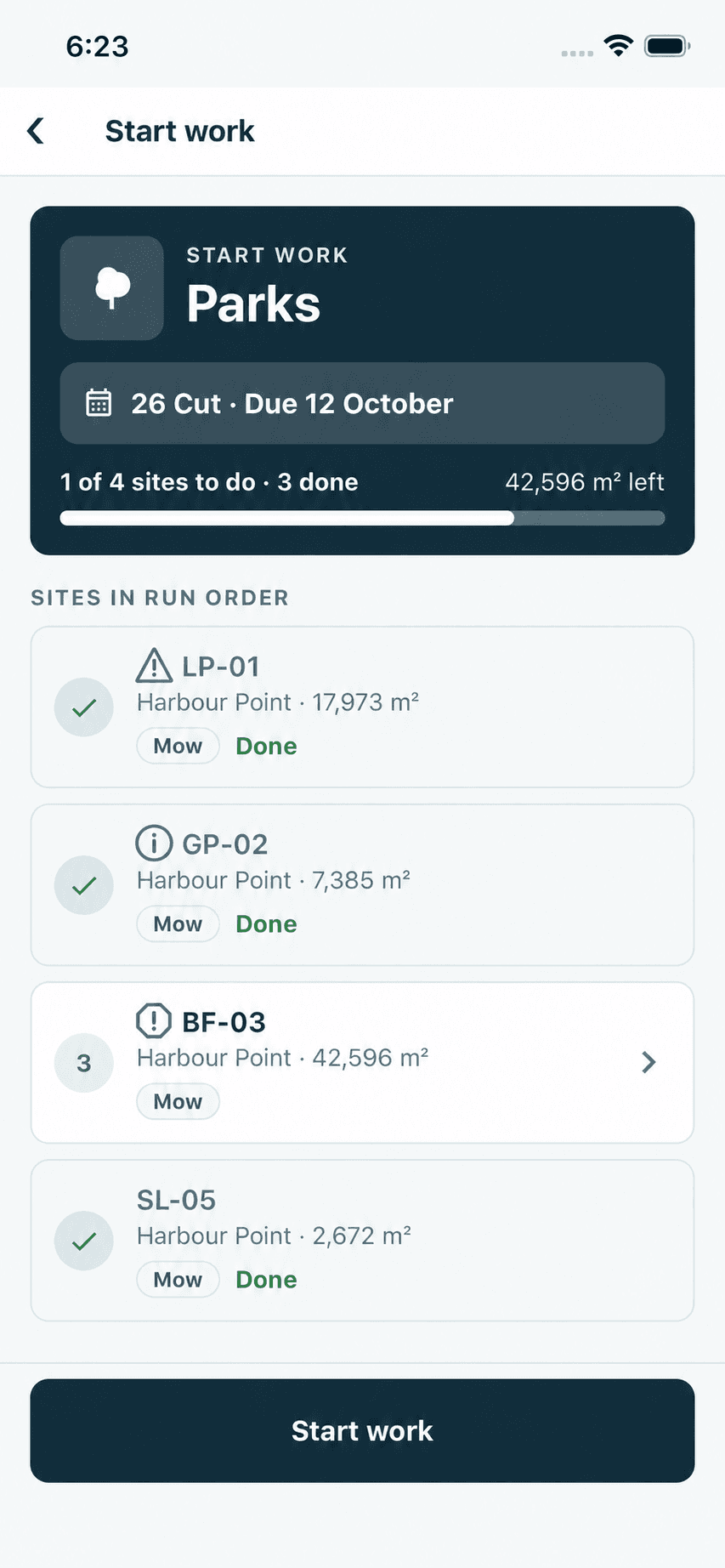
Each operator opens the app to their own work for the day, with the sites listed in the order the office set. They navigate to the site, read its notes and complete the job, with a photo where one is needed. Completions are saved on the phone when there is no signal.
- Today’s sites, in order. The list follows the service order set in the office.
- Progress for the run. Sites done, sites to do and area left.
- Notes marked on the list. A site with an active note shows the priority of its most serious note beside its code.
How it works
The run, the notes
and the job.
Open the app to today’s work
The home screen leads to the day’s sites, listed in run order.
Product screen · Demonstration organisation with synthetic data Navigate to the site
Guidance runs in the app, to the entry point where the office has set one.

Product screen · Demonstration organisation with synthetic data Read the notes and do the work
A site’s active notes are acknowledged before the job can be completed.
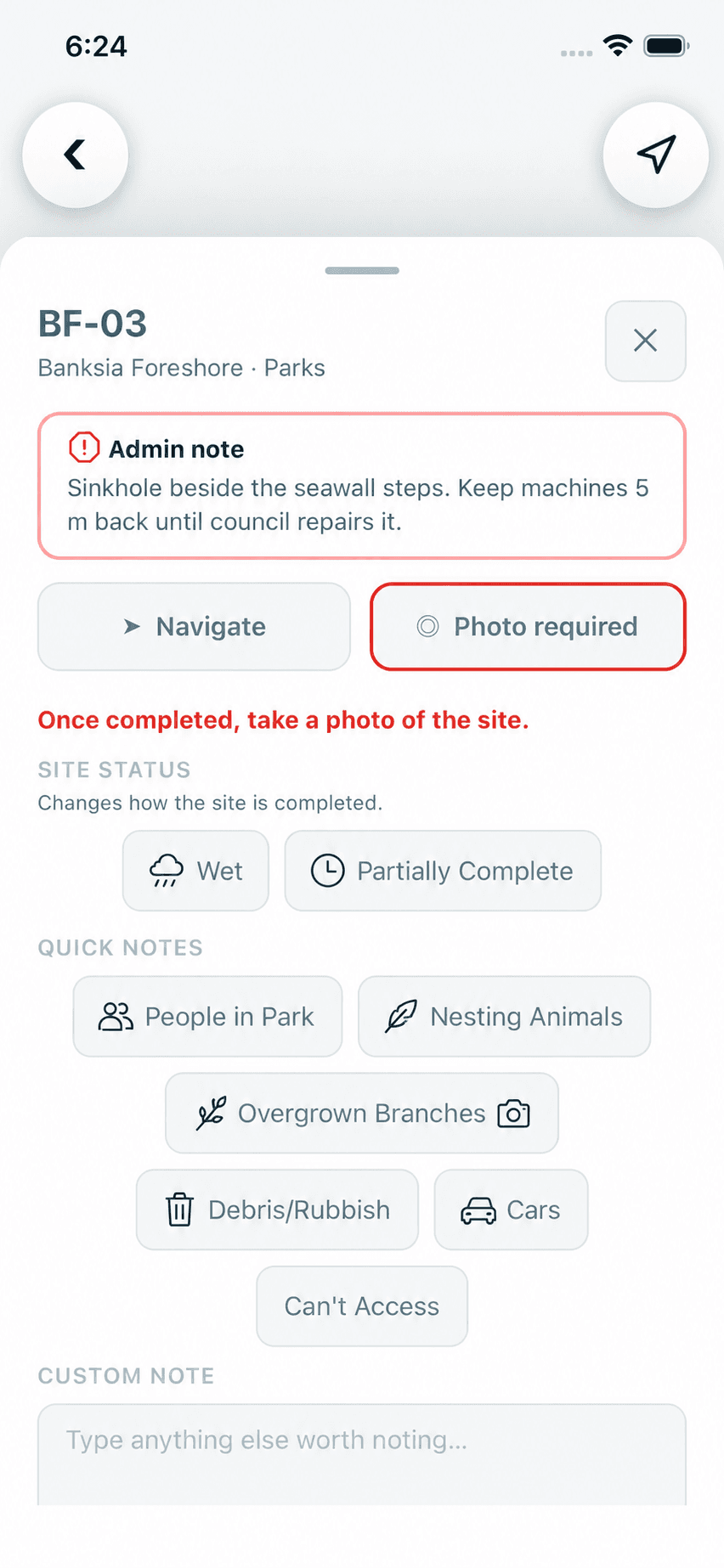
Product screen · Demonstration organisation with synthetic data Complete it, with a photo where one is required
With no signal, the completion is saved on the phone and sent when signal returns.

Product screen · Demonstration organisation with synthetic data
In the product
Real screens,
from a demonstration organisation.
The office’s note
A site’s active notes are acknowledged before the job can be completed.
Navigate in the app
Turn-by-turn guidance without leaving the app.
Photo required
While the setting is on, a site with an active critical note cannot be completed without a photo.
Add a photo on the job
A photo can be attached to any job.
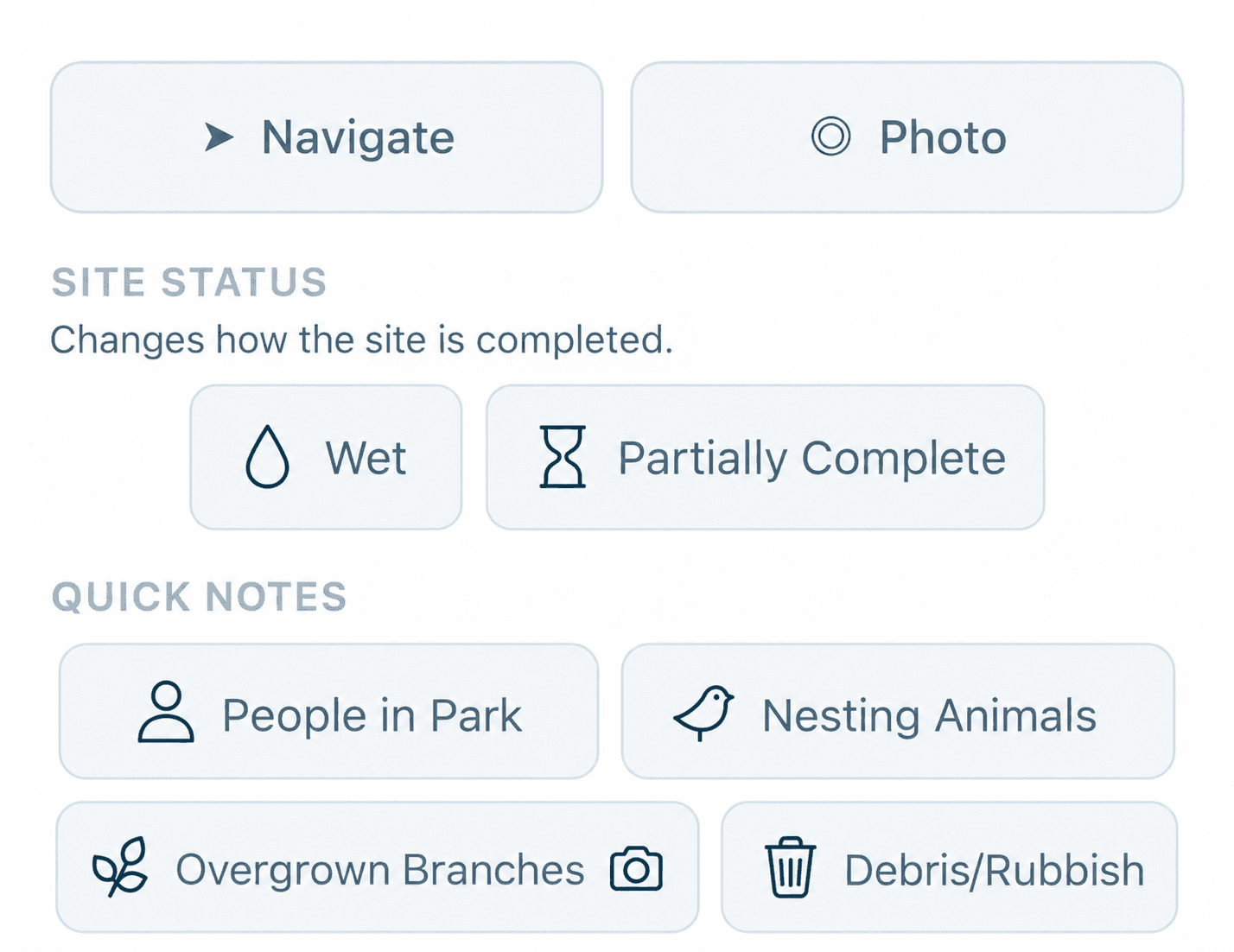

Product screens from a demonstration organisation with synthetic data.
Who uses it
One record,
two points of view.
In the office
Managers and supervisors
- Each run is put in service order when work is assigned.
- See completions as they arrive.
- Require a photo on critical sites.
In the field
Operators
- The day’s sites in run order, grouped by work type.
- Guidance to the site, in the app.
- Complete jobs with no signal.
Your questions
What you need to know.
Does it work without signal?
Yes. The day’s run is kept on the phone, and completions and their photos are saved there and sent when signal returns.
Which phones does it run on?
The app is built for iPhone, on iOS 16 or later, and for Android phones, on Android 7 or later.
Do operators see each other’s locations?
No. An operator cannot see another operator’s position or journey. Live positions are limited to owners, admins and managers, and journey history to owners and admins.
Can a photo be required?
Yes. While the setting is on, a site with an active critical note cannot be completed without a photo.
What does the operator see before starting?
The site’s active notes, critical first, which must be acknowledged, and any access notes for the site.
Does navigation open another maps app?
No. Turn-by-turn guidance runs inside the app. If guidance cannot start, the app says so and offers Try again.