
Platform Work management
A clear plan.
Before the crew leaves.
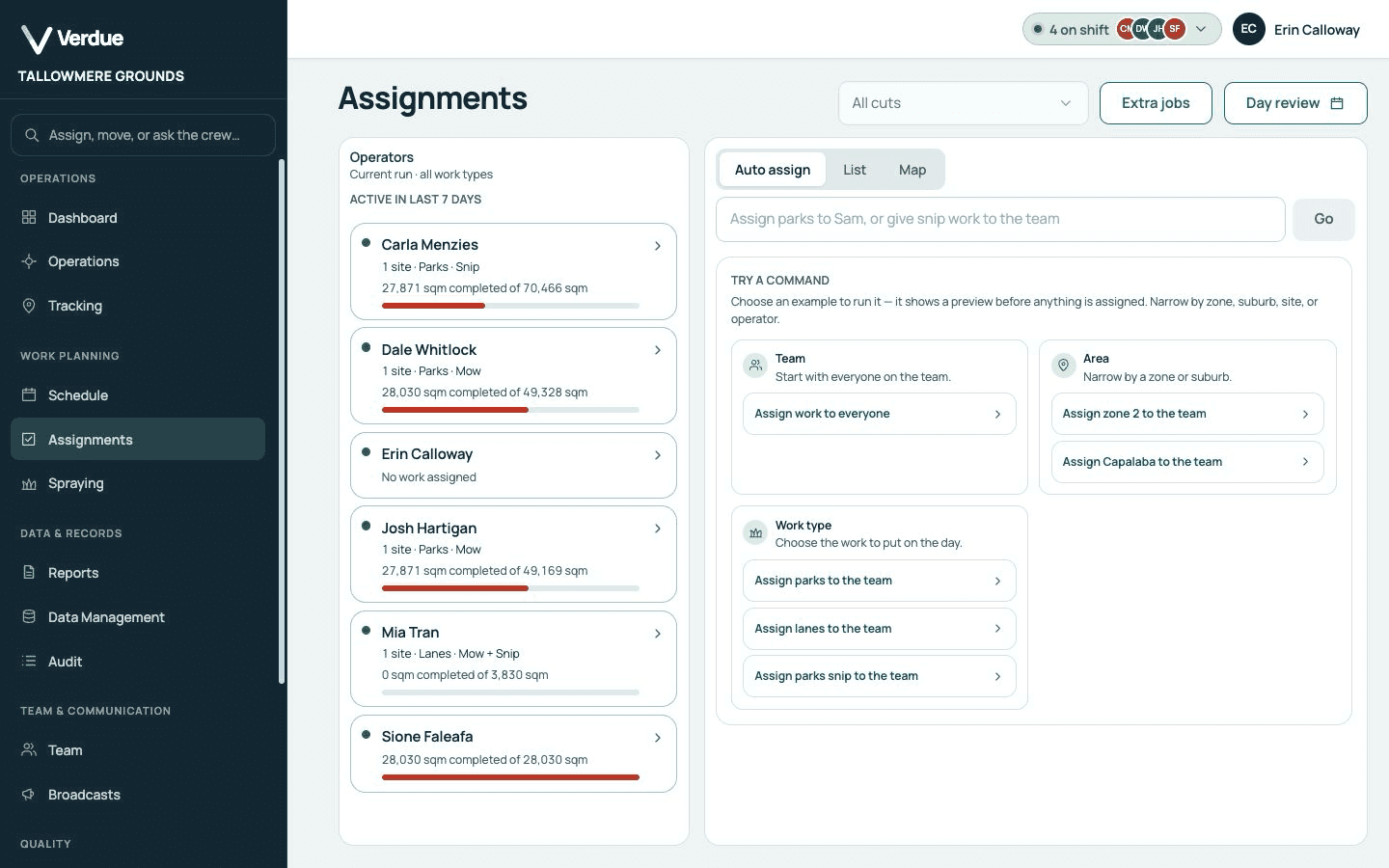
See each crew’s work for the day. Crew workloads, assigned sites and unfinished visits sit in one plan, so the office and the crew work from the same information.
- See each crew’s day. Every operator’s assigned sites and area sit side by side, so an uneven workload is visible before the day starts.
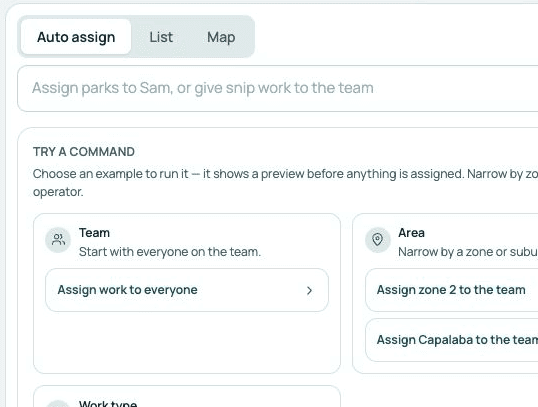
- Assign in plain words. Type what you want, such as giving a zone or a work type to the team, and check the preview before anything is assigned.
- Keep unfinished work in view. A visit that could not be finished stays in the plan, ready to be picked up on the next run.
How it works
Everyone starts from
the same plan.
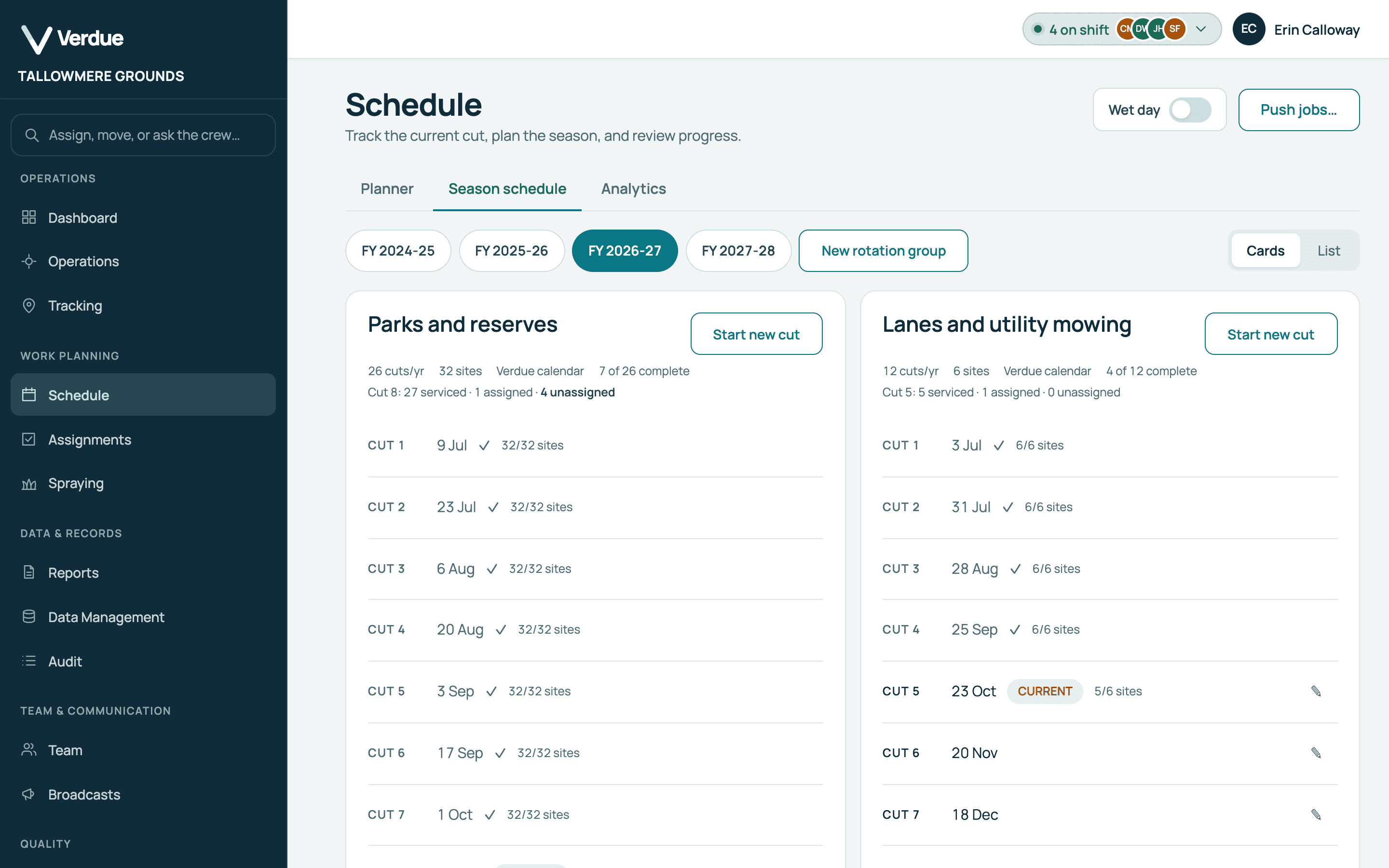
Work falls due
Starting a cut creates a job for every site in the rotation group, due on that cut’s date.
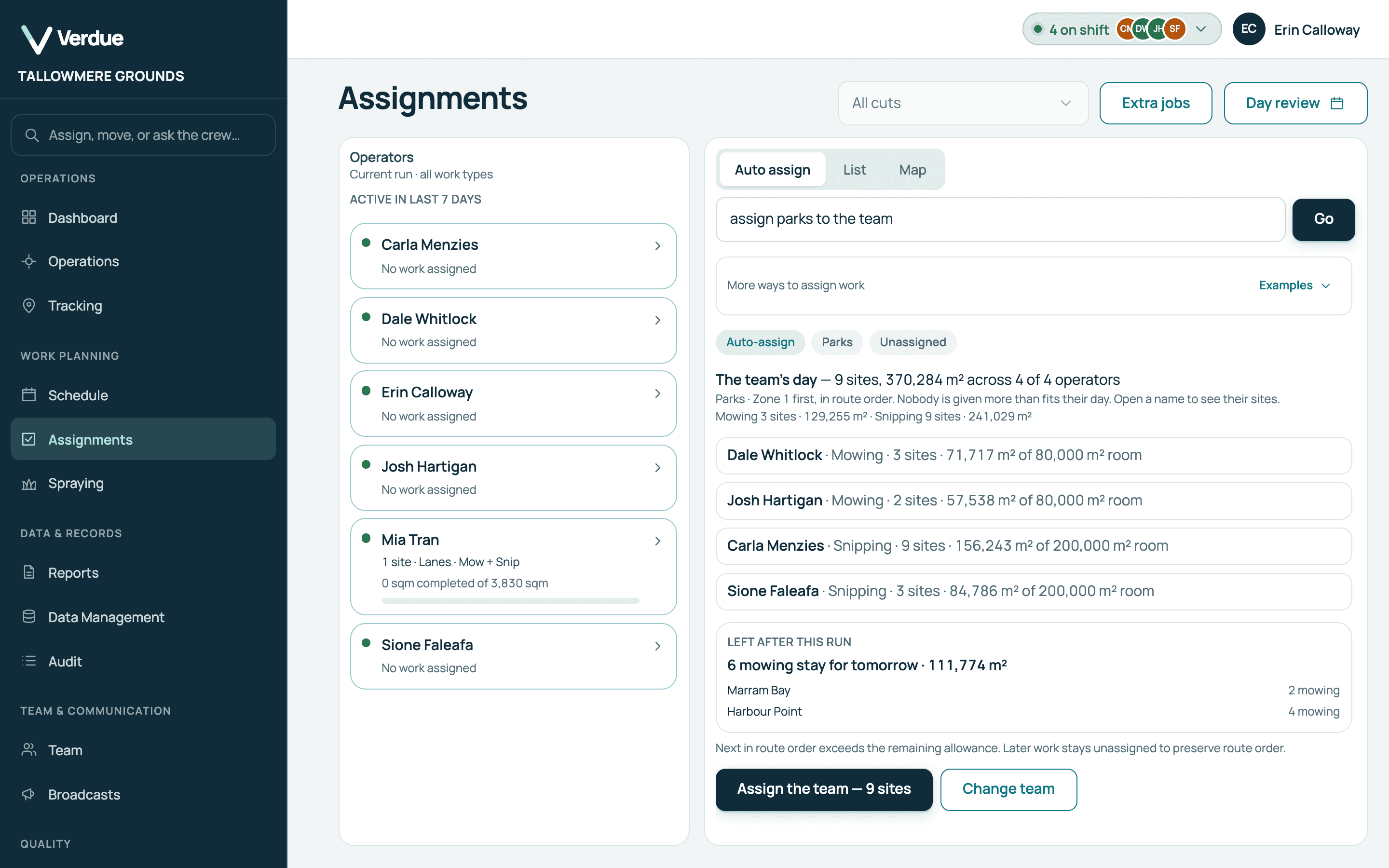
Product screen · Demonstration organisation with synthetic data The office plans the day
Assign by hand, by command, or from a proposed day.
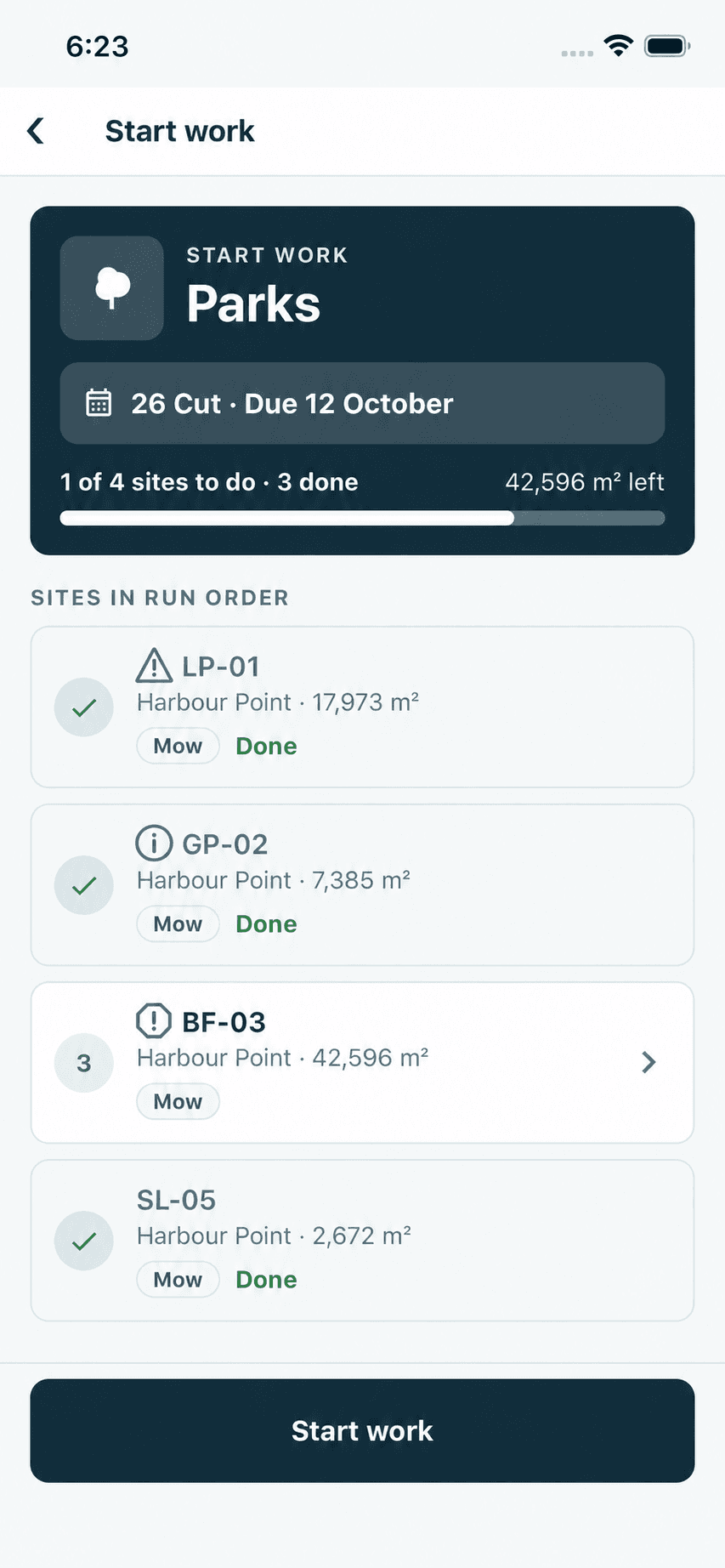
Product screen · Demonstration organisation with synthetic data The crew gets it on the phone
Each operator sees their own sites, in order.
Product screen · Demonstration organisation with synthetic data Unfinished work carries over
A job that is not completed stays open on the operator’s run and in the office’s assignments.

Product screen · Demonstration organisation with synthetic data
In the product
Real screens,
from a demonstration organisation.
A proposed day
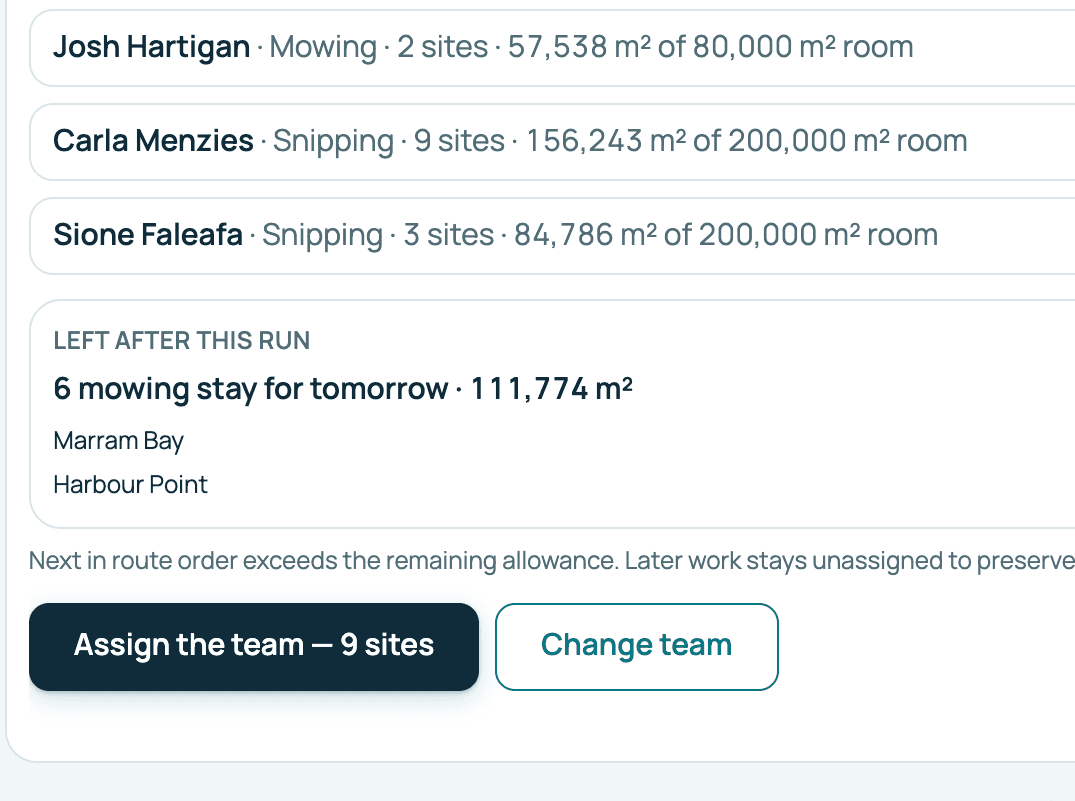
Each operator’s proposed area against their daily capacity.
The operator’s phone
The same plan the office made, on the operator’s phone.
Plain commands
Type what you want, such as giving a zone or a work type to the team, and check the preview before anything is assigned.
Carry-over
A visit that could not be finished stays in the plan, ready to be picked up on the next run.
Product screens from a demonstration organisation with synthetic data.
Who uses it
One record,
two points of view.
In the office
Managers and supervisors
- See who has what before the day starts.
- Move a site from one operator to another.
- Pick up work left from the previous cut first when proposing a day.
In the field
Operators
- Open the app to the day’s work, with the sites listed in run order.
- Read the site’s notes before starting.
- Mark a visit partially complete and add a note saying why.
Your questions
What you need to know.
Can I see what each crew has before the day starts?
Yes. The assignments view lists each operator with their sites and area for the current run.
What happens to work that was not finished?
It stays open on the operator’s run and in the office’s assignments, and it can be moved to another operator. When you propose a day, work left from the previous cut is dealt first.
Does it change anything without me checking?
No. Assignment commands show a preview first. Nothing is assigned until you confirm.
Can I move a site from one operator to another?
Yes. Select the site and assign it to another operator. If it is already held, you choose whether the new operator joins the crew or takes it over, and a typed command can move one operator’s whole run to another.
Does the crew see changes straight away?
Usually within a minute. With signal, the operator’s map checks for changes about once a minute while it is open and again whenever the app is brought back to the front. The lists reload each time they are opened.
How long does a completed job stay on the operator’s run?
Until your organisation’s cut-off hour, 5 pm by default. The next day starts from open work only.